Stop autoplay in Chrome. Nothing plays until you click.
PlayStop is a free Chrome extension that blocks autoplay. Videos and audio on websites wait until you press play, and background tabs can’t start playing on their own.
 3
3
 PlayStop
You opened a page to read it. Then it started talking.
A video starts above the article. Sound comes from a tab you opened ten minutes ago, and you hunt for it with the volume up.
In an office, a library or a quiet room at night, that is more than annoying. With PlayStop, nothing starts until you press play.
How PlayStop blocks autoplay
-
Add PlayStop to Chrome
It works as soon as it’s installed. There is nothing to set up.
-
Browse as usual
PlayStop blocks any video or audio player that tries to start on its own, on the page you’re reading and in every background tab.
-
Click play when you want it
Press play and it plays. Playlists and “next video” countdowns carry on from there.
What PlayStop does
You control PlayStop from one small popup on the Chrome toolbar.
-
Hover previews stay still
Thumbnails don’t burst into video when your mouse passes over them.
-
No surprise restarts
A paused player stays paused, even when your headphones reconnect and the site tries to resume it.
-
Allow the sites you trust
Choose “Allow this site” in the popup and that site plays as usual. One switch turns PlayStop off everywhere.
-
Your allowed sites in one place
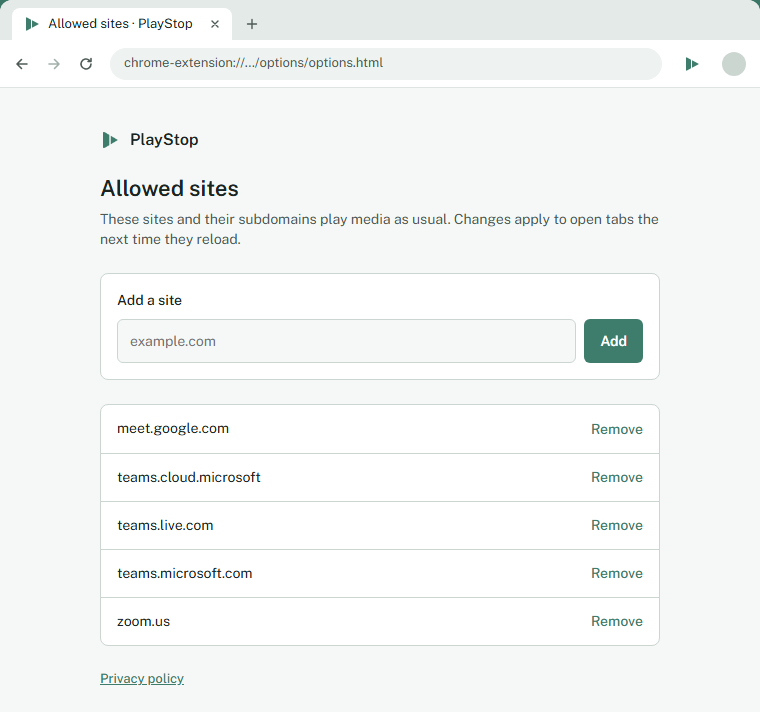
See the whole list on the Allowed sites page, add a site, or remove one. Google Meet, Zoom and Microsoft Teams are on it from the start.
-
See what was blocked
The number on the toolbar icon shows how many plays PlayStop blocked on the page you’re on.
-
Follows you between computers
With Chrome sync on, your settings reach every computer you’re signed in on.
What happens to your data
PlayStop collects no data. It runs entirely inside your browser, makes no network requests of its own, and keeps no record of the pages you visit.
Read the privacy policy- Free to use without an account, ads or analytics
- Settings stay in Chrome and sync only through your own Google Account
- Uninstalling PlayStop removes its settings from your browser
Questions about PlayStop
- How do I stop videos from playing automatically in Chrome?
- Install PlayStop. It blocks autoplay on websites, so videos and audio stay paused until you press play. Chrome’s own site settings can mute a site, but the video still plays.
- Does it stop autoplay on YouTube?
- Yes. A YouTube video waits for you to press play. Once you’re watching, playlists and the “next video” countdown carry on as usual.
- Will it break my video calls?
- No. Google Meet, Zoom and Microsoft Teams are allowed by default, so calls work as usual. You can allow any other site you use for calls.
- Can I let a site autoplay?
- Yes. Open the PlayStop popup on that site and choose “Allow this site”. You can see or remove allowed sites any time on the Allowed sites page.
- Does it work on videos embedded from other sites?
- Yes. Players embedded in a page, like a video inside a news article, wait for your click too.
- What does the number on the icon mean?
- It’s how many plays PlayStop blocked on the page you’re looking at. It starts again at zero on each new page.
- Is PlayStop free?
- Yes. Every feature is free, and you don’t need an account to use it.
- Does PlayStop collect any data?
- No. PlayStop makes no network requests of its own and keeps no record of the pages you visit. The privacy policy has the details.

Give your tabs some quiet.
Add to ChromeComing soon to the Chrome Web Store
Free, and works without an account.